
Step 1: Start by downloading our Android Applications here:

Step 3: Enter the login credentials that were provided to you after you get a subscription with us
Step 4: Be patient while your content uploads.
Step 6: Enjoy!
Step 1: Start by downloading our Android Applications here:

Step 3: Enter the login credentials that were provided to you after you get a subscription with us
Step 4: Be patient while your content uploads.
Step 6: Enjoy!
1: From the home screen of your device, hover over the Find option.
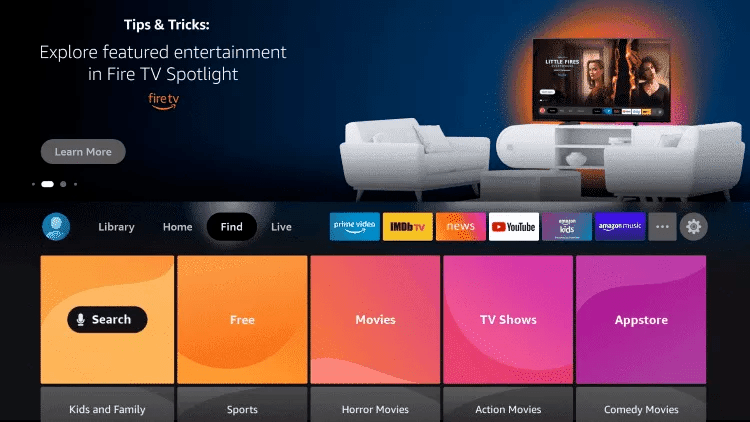
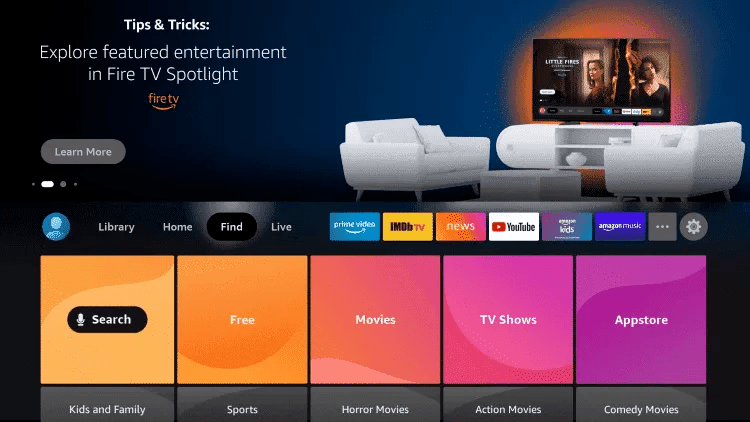
2. Click Search.
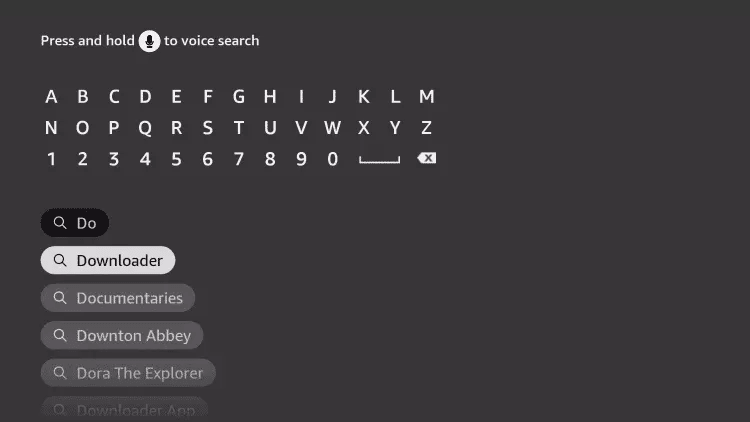
3. Search for and select Downloader.
4. Choose the Downloader app.
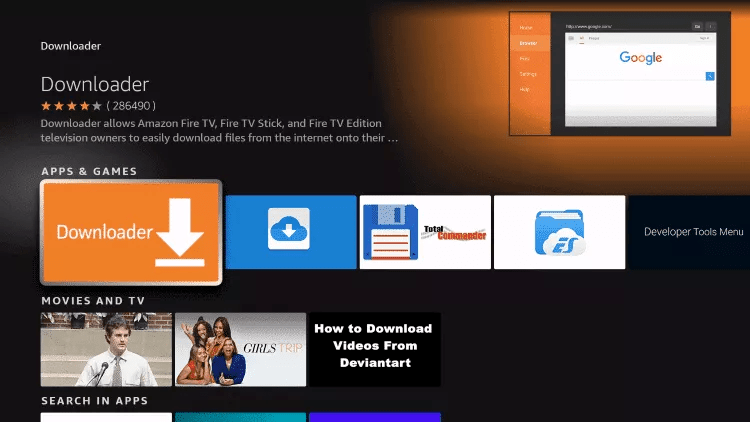
5. Click Download.
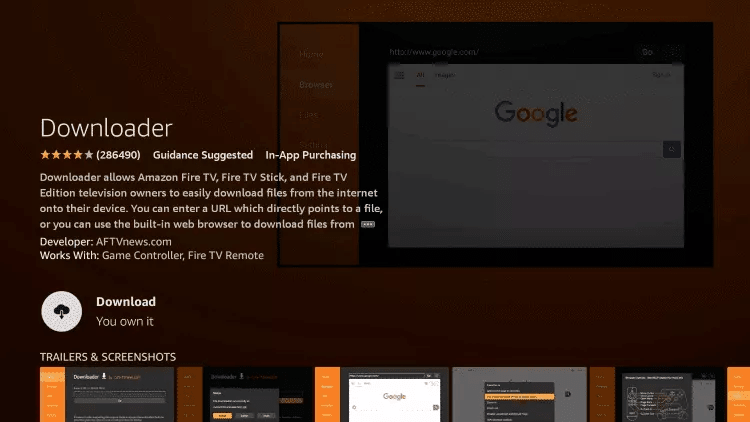
6. Once the app finishes installing click Open.
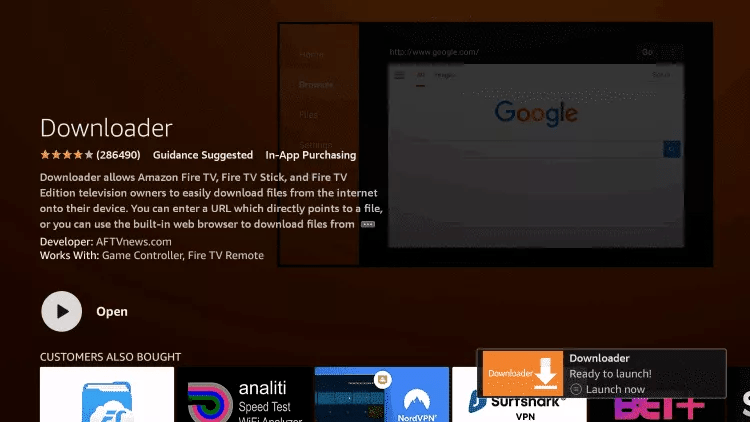
7. Return to the home screen and open Settings.
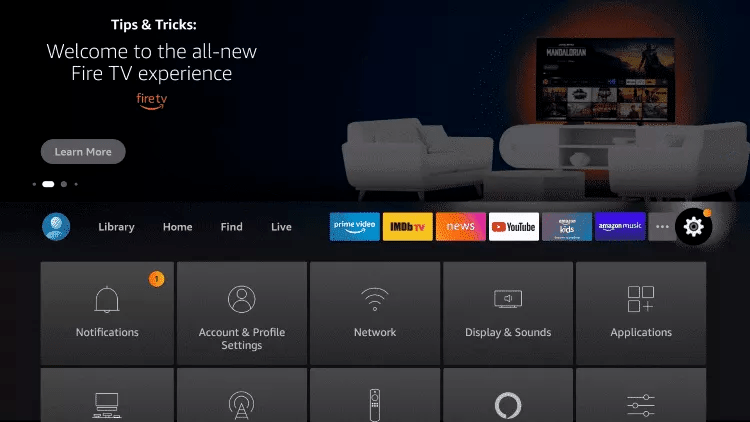
8. Click My Fire TV.

9. Choose Developer options.
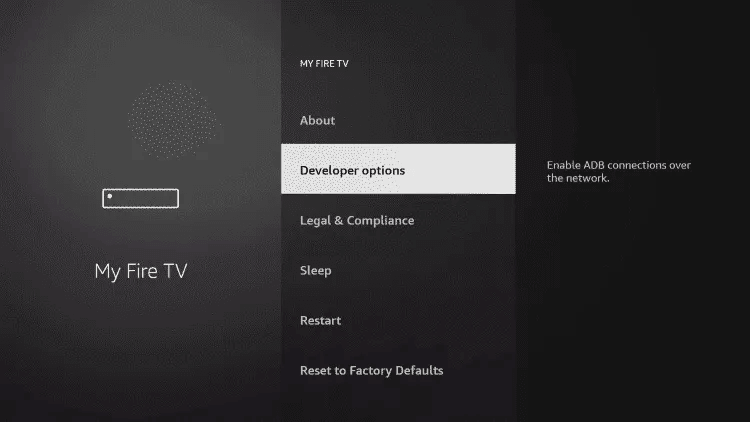
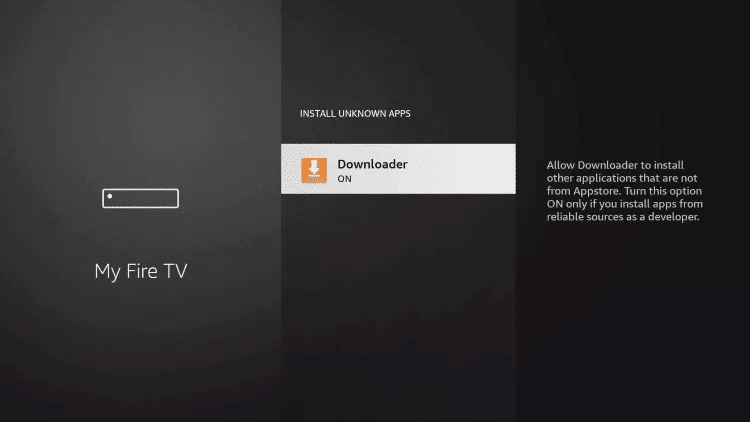
10. Click Install unknown apps.

11. Find the Downloader app and click it.

12. This will turn Unknown Sources to On for the Downloader app. This will enable side-loading on your device.
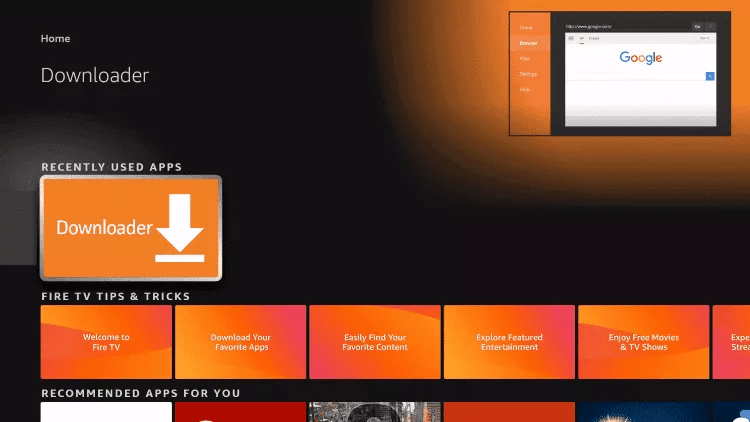
13. Launch Downloader.
14. Click Allow.

15. Click OK.

16. Type our app code: 788122 into the search field and click Go.
17. Wait for file to download.
18. Click Install.
19. Click Done.
20. Open the AXEDTV App then select “TV”.
21. Enter the login details that we sent you via Email.
22. Enjoy!
Step 1: Start by downloading our Android Applications here:

Step 3: Enter the login credentials that were provided to you after you get a subscription with us
Step 4: Be patient while your content uploads.
Step 6: Enjoy!
Looking to install IPTV on your Samsung or LG Smart TV? This guide covers the 5 easiest and most reliable methods to stream IPTV on both platforms. With built-in app support, Smart TVs make it simple to enjoy live TV, movies, and sports — especially when using a top-rated provider like AxedTV.
 5 Ways to Install IPTV on Samsung Smart TVs
 Enable Developer Mode (on Tizen-based Samsung TVs)
Go to Settings > Smart Hub > Apps.
Enter PIN code (default is 0000).
Enable Developer Mode.
Enter your PC’s IP address and restart the TV.
 Install Tizen Studio on Your PC
Download Tizen Studio from https://developer.tizen.org.
Install with:
Tizen SDK tools
Samsung Certificate Manager
 Create Samsung Certificate
Open Tizen Studio > Certificate Manager.
Create a new Samsung certificate for app signing.
 Get the STBEmu Tizen App
STBEmu is not officially made for Tizen, so you’ll need a web-compatible .wgt file (or package your own using the Android version as a webview).
Alternatively: use an IPTV web player launcher or IPTV Smarters Player Tizen (available unofficially in .wgt format).
Most users install IPTV Smarters Player or similar, as STBEmu is primarily Android-based.
 Sideload the App to Your Samsung TV
Connect TV and PC to same network.
Open Tizen Studio > Device Manager > Connect your TV (using IP).
Deploy the .wgt file:
Right-click your project > Run As > Tizen Web Application.
 Open the App on TV
Go to Apps.
You should see your sideloaded IPTV app.
Open it and configure your IPTV portal URL (MAG setup).
STBEmu IPTV Configuration ExampleOnce the app is installed:
Open STBEmu.
Choose “Configure”.
Set:
MAC address (starts with 00:1A:79...)
Portal URL: http://line.protv.cc:80
5 Ways to Install IPTV on LG Smart TVs Enable Developer Mode (on Tizen-based Samsung TVs)Go to Settings > Smart Hub > Apps.
Enter PIN code (default is 0000).
Enable Developer Mode.
Enter your PC’s IP address and restart the TV.
Install Tizen Studio on Your PCDownload Tizen Studio from https://developer.tizen.org.
Install with:
Tizen SDK tools
Samsung Certificate Manager
Create Samsung CertificateOpen Tizen Studio > Certificate Manager.
Create a new Samsung certificate for app signing.
Get the STBEmu Tizen AppSTBEmu is not officially made for Tizen, so you’ll need a web-compatible .wgt file (or package your own using the Android version as a webview).
Alternatively: use an IPTV web player launcher or IPTV Smarters Player Tizen (available unofficially in .wgt format).
Sideload the App to Your Samsung TVConnect TV and PC to same network.
Open Tizen Studio > Device Manager > Connect your TV (using IP).
Deploy the .wgt file:
Right-click your project > Run As > Tizen Web Application.
Open the App on TVGo to Apps.
You should see your sideloaded IPTV app.
Open it and configure your IPTV portal URL (MAG setup).
STBEmu IPTV Configuration ExampleOnce the app is installed:
Open STBEmu.
Choose “Configure”.
Set:
MAC address (starts with 00:1A:79...)
Portal URL: http://your-iptv-server.com/
